
Your user manual
Busy Fox · Printer help
Phomemo M110 user guide
Set up your printer, print labels and solve printing problems.
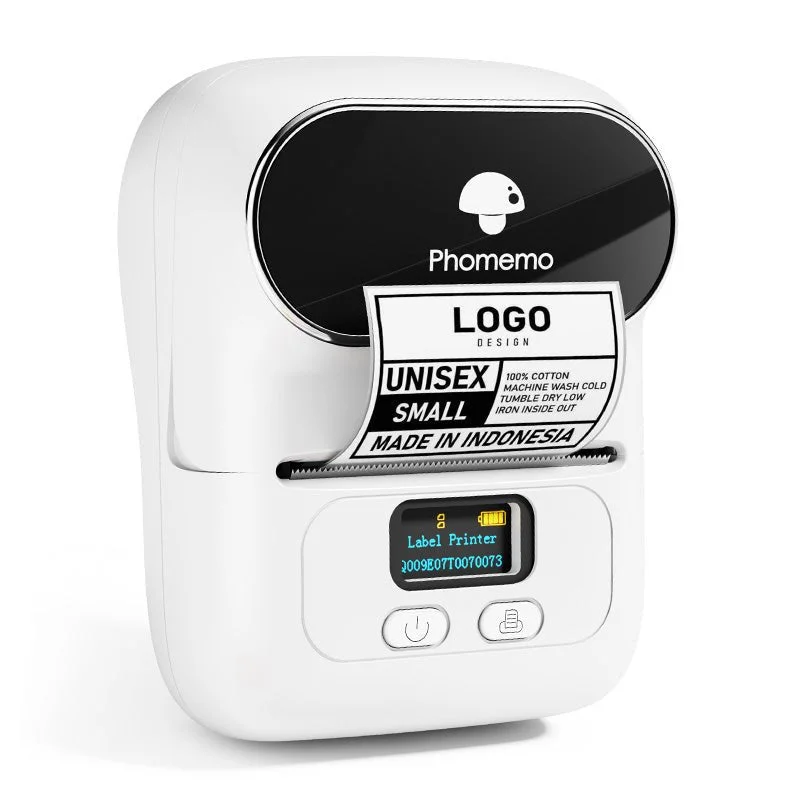
Phomemo M110
Your mobile app
Print Master
See how it’s done
Set up your M110 and print your first label
Print Master · phone
Replace the label roll in your M110
Create your first label
Print Master · phone
Create a barcode
Print Master · phone
Print multiple copies of a label
Print Master · phone
Create a QR code
Print Master · phone
Choose the label type in Print Master
Print Master · phone
Adjust print darkness
Print Master · phone
Adjust printing speed
Print Master · phone
Set up your M110 on Windows
Driver · Windows
Set up your M110 on Mac
Driver · macOS
Print a batch of labels with Excel
Labelife · computer
Save designs and find print history in Labelife
Labelife · computer
Clean the print head of your M110
Restore paper detection on your M110
The video shows the M220. These steps also apply to the M110.
Import Excel data
Print Master · phone
Check the roll and label size on your M110
Print Master · phone
The video shows an older Print Master interface.
What do you need help with?
Setup & connection
Which app should I use on my phone?
Use Print Master on your iPhone or Android phone. Turn on the M110 and connect to it from inside Print Master. For USB printing from a computer, use the matching Phomemo driver and Labelife; the phone and computer use different apps.
Why can Print Master not find my printer?
- Turn on the M110 and Bluetooth on your phone.
- In your phone settings, allow Print Master to use Bluetooth. On Android, also check location access if the app requests it.
- Open Print Master and search for the M110 there, rather than pairing it in your phone’s Bluetooth settings.
Still not working? See below for the details you can send us.
How do I change the printer language?
Switch on the printer. Press and release the power button repeatedly until Language appears on the screen. Do not hold the button down. Press the paper-feed button to cycle through the available languages. This changes the printer display language, not the language of Print Master on your phone.
Labels & loading
Which label widths fit?
The M110 supports label widths of 20-50 mm. Check the dimensions on the roll packaging, then set the same label size in your design.
How do I load a label roll?
Slide the roll to the right-hand side of the holder with the printing side facing down. Seat both ends of the holder in the slots on either side of the compartment. The roll must be able to turn freely. Pull about 15 mm of label paper through the outlet so the printer can detect it. Then close the cover.
Why does it feed a label after loading?
The printer is finding the start of the next label. This positioning step helps keep your design aligned after you change a roll.
Which paper type should I select?
Switch on the printer. Press and release the power button repeatedly until Paper gap type appears on the screen. Do not hold the button down. Use the paper-feed button to select Gap or Non-continuous for individual labels separated by gaps, Black mark for backing with printed detection marks, or Continuous for an uncut roll. Match the label type and dimensions in your design to the loaded material as well.
Why does it say there is no paper?
Slide the roll to the right-hand side of the holder with the printing side facing down. Seat both ends of the holder in the slots on either side of the compartment. The roll must be able to turn freely. Pull about 15 mm of label paper through the outlet so the printer can detect it. Then close the cover.
The printer automatically finds the label position after loading. If the warning remains, send us a photo of the loaded roll and the exact message.
What should I check when labels do not feed?
Slide the roll to the right-hand side of the holder with the printing side facing down. Seat both ends of the holder in the slots on either side of the compartment. The roll must be able to turn freely. Adjust the guides to the roll without clamping it tightly. If it still does not feed and you have another compatible roll, try that. If you have no spare or the problem persists, see below for the details you can send us.
Why does a thermal label fade or turn darker after printing?
Thermal labels can change colour when exposed to heat, sunlight or moisture. Store spare rolls in their closed packaging in a cool, dry place away from direct sunlight. Keep printed labels away from strong heat and prolonged moisture. For shipping labels, keep packing tape off the printed area; contact with tape can affect the thermal coating. Changing print darkness does not prevent damage caused by storage or use.
Designing & printing
How do I print a label from a PDF?
- Open the PDF-printing option in Print Master.
- Import your PDF file.
- Select the size of the loaded labels and check the print preview.
- Print one test label and check that the text and any barcodes are easy to read.
Use a PDF designed for your label size. Shrinking a whole A4 document to a small label can make text and barcodes unreadable.
How do I add a barcode or QR code?
- Add a barcode or QR code in the label editor. Choose the code type, enter the content and leave space around the code.
- Print one label and scan it with the phone or scanner you will use. Check that it returns the correct data or opens the intended page.
- Print the remaining labels once the test scan is correct.
How do I print labels using a spreadsheet?
- Prepare an .xls or .xlsx file with column names in the first row and the data below. Use one row per label.
- Import the file into Print Master and place the required fields in your label design.
- Check the preview, including the row with the longest text, then print one test label before printing the batch. The linked tutorial shows the import steps.
What size should I set for 50 mm round labels?
Choose a 50 mm round template, or a 50 × 50 mm page if the editor asks for width and height. Keep the artwork inside the circle; text in the corners of a square layout will fall outside the label.
Why does a border look uneven around the circle?
A border close to the cut edge makes small alignment differences very visible. Centre the artwork and leave more clear space around it. Check one printed label before using the same layout for the rest of the roll.
Where can I find saved labels and previous print jobs?
Open Print record or Print History in Print Master. This is where the app lists saved label templates and print history. Open the label you want to use and check its text and size before printing it again. A previous print job and a saved, editable template are not necessarily the same thing.
Why can I no longer see my saved designs in Print Master?
- Open Print record or Print History in Print Master. Check your saved labels and previous print jobs there.
- Have you changed phones or signed in again? If you still have it, also check the phone where you saved the design. If you used an account then, check that you are signed in to the same account now.
- Save or export any designs you can still open before uninstalling the app or clearing its data.
Still missing a design? Send us your phone model, operating system, Print Master version and a screenshot of what you see. Tell us when the design disappeared, for example after signing in, an update or changing phones.
Why does Print Master ask for a subscription?
Print Master also offers paid app features. A subscription prompt relates to that offer, rather than a printer fault. Check the offer for the included features, price and subscription period.
Does the prompt appear when you try to do something? Send us a screenshot and your app version. Tell us what you want to do so we can help.
How do I print a design from my computer using my phone?
- Save your design as a PDF in Labelife on your computer. Use the size of the labels you will print.
- Transfer the PDF to your phone, for example by email or cloud storage.
- Open Print Master and connect your printer. Open the PDF printing feature and import the file.
- Choose the correct label size and check the orientation and preview. Print one test label before printing the rest.
Want to change the text or layout later? Keep the editable Labelife design on your computer too.
Print quality & problems
Why are my labels coming out blank?
Check that you have loaded thermal labels with the printing side facing down. Pull about 15 mm of label paper through the outlet so the printer can detect it. Then close the cover. Check that your print preview contains the text or image you want to print, then try one label. Is the preview correct but the label still blank? Try another compatible thermal roll if you have one. If you have no spare or the print stays blank, send us photos of the loaded roll and result.
What should I check if the print is faint or unclear?
- Compare the source image and print preview with the print. If the preview is already blurry, use a sharper image.
- If the whole print is faint, charge the battery and check the loaded labels.
- Switch on the printer. Press and release the power button repeatedly until Print darkness appears on the screen. Do not hold the button down. Use the paper-feed button to increase darkness one step and print a test label.
- If letters or lines merge, reduce darkness and compare again.
- Do you see white streaks or missing parts even though the print preview is complete? Check the printhead for dirt and follow the cleaning instructions below. Let the printhead dry completely before printing again.
If you have another compatible roll, compare one print with it. If you have no spare or the problem persists, contact us with your file, a photo of the print and your settings.
Why is my design off-centre?
Match the design size to the loaded labels, centre the artwork in the preview and leave space around the edge. For 40 × 30 mm labels, use a 40 × 30 mm template. Slide the roll to the right-hand side of the holder with the printing side facing down. Seat both ends of the holder in the slots on either side of the compartment. The roll must be able to turn freely. Check that the labels feed straight.
If it still happens, contact us with your label settings and a short video of the feed.
Why does the printer skip labels?
Check the label dimensions in your design and the paper type on the printer. Labels with gaps, black marks and continuous rolls need different paper-type settings. Follow the linked paper-type instructions, then print one test label.
If it still happens, contact us with your label settings and a short video of the feed.
What information helps with a support request?
Send us your printer model, phone or computer model, and a photo or short video of the problem.
To find the serial number: connect the printer in Print Master, open the connected printer and tap the arrow next to it. Under Printer Management, look for Model Serial Number. You can send a screenshot instead of copying the number. The link below shows the screens.
Unable to connect? Scan the QR code on the printer with your phone camera. The page that opens shows the serial number (SN), starting with Q. Send us a screenshot. If that does not work either, contact us with the other details you have.
Computer printing
How do I print from Windows or Mac?
- Open the download page below and select M110. Install the Phomemo driver for your operating system.
- Install Labelife on your computer too. For Windows, use the software on the download page; on a Mac, install Labelife from the Mac App Store.
- Turn on the printer and connect it directly to your computer with a USB data cable.
- Using a Mac? Open Printers & Scanners in System Settings and add the connected printer. Choose Label Printer for the printer software.
- Open Labelife and select the printer. Match the document and print settings to the size of the loaded labels. Print one test label.
What if Labelife on my computer cannot find the printer?
- Switch on the printer and connect it directly with a USB data cable. Try another port or data cable and select the correct printer in Labelife.
- After an update, save your work and close any older Labelife version that is still running. Open the new version and reconnect the USB cable.
- If the printer is also missing from your computer’s printer list, check the driver for your model and operating system.
Before reinstalling software, save or export your designs. If it still fails, send us your operating system, Labelife version and the exact error.
How do I save a Labelife design for later?
- On your computer, choose File → Save or Save as in Labelife. Save the design as an .aml file with a name and location you can find again.
- Open that .aml file to edit the design later. Export a PDF, PNG or JPG if you need a copy for printing in another program; it does not replace the editable design.
- Copy your saved files before moving computers or reinstalling software. Do not use print history as your only copy.
My Mac blocks the driver installation. What should I do?
- Download the Mac driver for M110 directly from Phomemo. The setup instructions below include the download link.
- Does macOS say the developer cannot be verified? Check where the file came from. If you trust its source, follow the Apple instructions below to allow only that file through System Settings → Privacy & Security → Open Anyway.
- Does macOS say the file is damaged or will harm your computer? Do not open it using an exception. Send us the exact message, your macOS version and the downloaded file name so we can help you choose the next step.
Care & power
How do I change the automatic shutdown time?
Switch on the printer. Press and release the power button repeatedly until Auto power OFF appears on the screen. Do not hold the button down. Press the paper-feed button to cycle through the available delays. Choose NO Close if you want the printer to stay on.
What if the printer will not charge or switch on?
Try another charging cable with a 5 V, 2 A supply. Leave it charging for an hour, then try switching it on again.
Still not working? See below for the details you can send us.
How do I clean the printhead?
Switch off the printer, disconnect the charging cable and let the printhead cool. Open the cover and remove the roll. Gently wipe the printhead’s dark line with an alcohol swab to remove dirt or adhesive residue. Let it air-dry completely, refit the roll with the printing side down and close the cover. Print one test label.
No matching answers. Try another word or browse the topics.
Printing from a computer?
Your computer uses different software from the mobile app.
WindowsmacOS
Labelife for desktop.
Use Labelife to design and print labels on your computer with the M110.
Find the right driver.
Choose your printer model and operating system on Phomemo’s official download page.
Software & drivers at PhomemoAbout this guide and its sources
This guide brings together instructions and answers for your printer. You can consult the Phomemo brand documentation and original tutorials below. App screens and available features may vary by version.
Documentation & answers
- Which app should I use on my phone?
- Why can Print Master not find my printer?
- Phomemo brand user manual (PDF)
- What should I check when labels do not feed?
- Why does a thermal label fade or turn darker after printing?
- Why does Print Master ask for a subscription?
- What information helps with a support request?
- How do I print from Windows or Mac?
- What if Labelife on my computer cannot find the printer?
- My Mac blocks the driver installation. What should I do?
Original video tutorials
- Set up your M110 and print your first label
- Create your first label
- Create a barcode
- Print multiple copies of a label
- Create a QR code
- Choose the label type in Print Master
- Adjust print darkness
- Adjust printing speed
- Set up your M110 on Windows
- Set up your M110 on Mac
- Save designs and find print history in Labelife
- Replace the label roll in your M110
- Clean the print head of your M110
- Restore paper detection on your M110
- Import Excel data
- Check the roll and label size on your M110
Still need a hand?
Tell us your printer model, which app or computer you use, and what happens when you try.