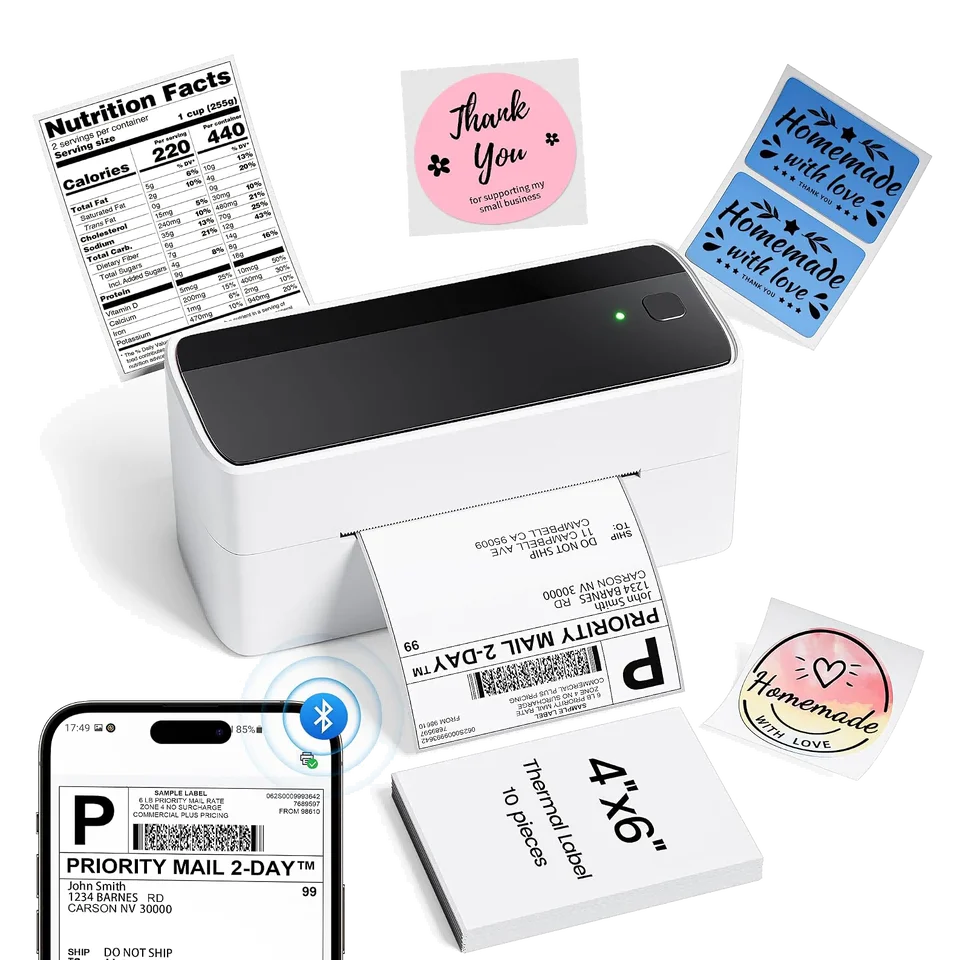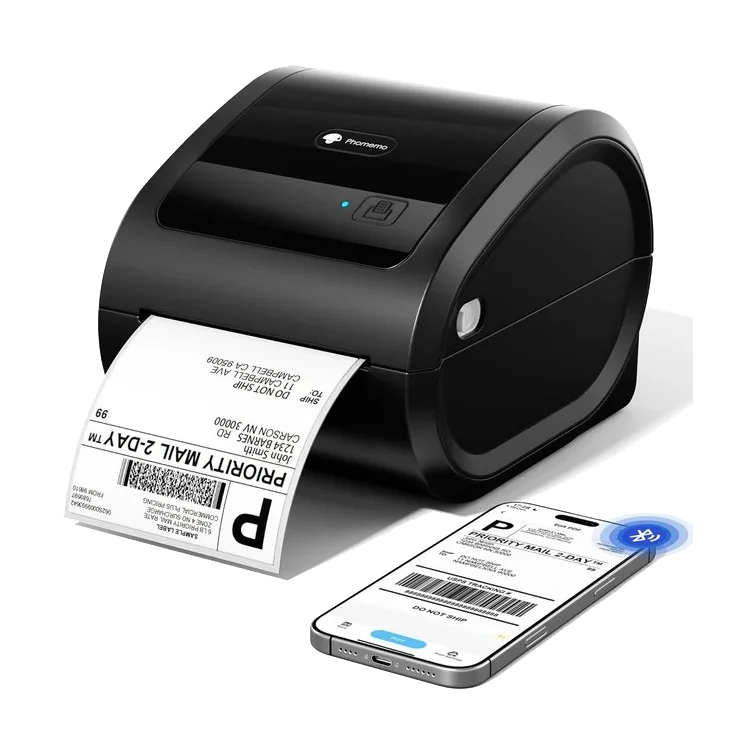
Phomemo D520BT
€129,95Standard pack
Keep your label roll inside the printer.
Place a suitable roll in the built-in compartment. Feed fanfold labels through the back.
Print shipping labels from your phone or computer. Choose the printer and label feed that fit your workspace.
Place a suitable roll in the built-in compartment. Feed fanfold labels through the back.
Place fanfold labels behind the printer or use a separate holder for label rolls.
A roll holder is not included in the standard pack.
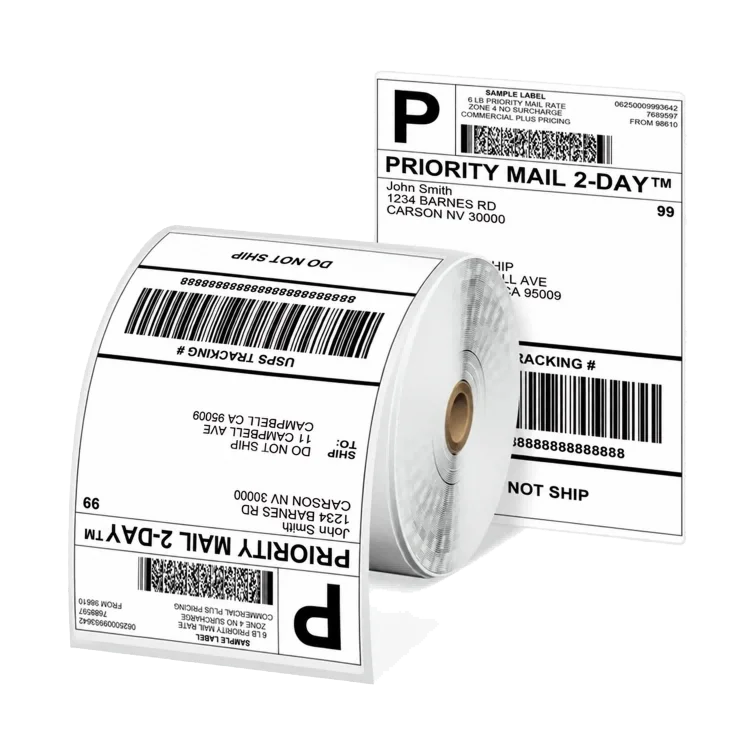
Choose a roll or stack of white shipping labels. Each label is 4 × 6 inches (101.6 × 152.4 mm). Select the number of packs below to see the price per pack.
1 roll · 500 labels
With the PM241-BT, the roll sits on a separate holder. The D520BT can keep a suitable roll in its internal compartment.
€29,95 per pack
€5,99 per 100 labels
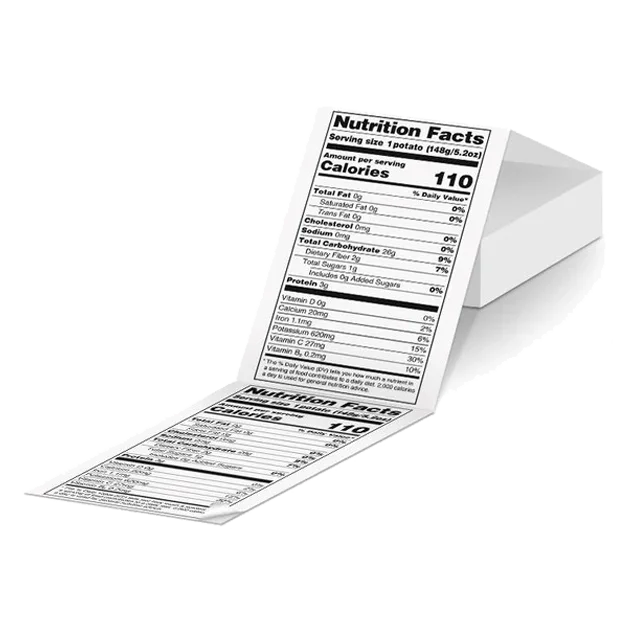
500 labels
Place the stack flat behind the printer. No roll holder is needed. Keep the feed path clear and straight.
€29,95 per pack
€5,99 per 100 labels
These steps apply to both printers. Choose the device you want to print from.
Create the shipping label in your shipping platform and download the PDF. Choose 4 × 6 inches when exporting if your platform offers it.
Connect the printer to mains power and load the labels. Open Labelife on your iPhone or Android phone, connect the printer over Bluetooth inside the app and import your PDF.
See the steps for your printerConnect the printer to mains power and load the labels. Use USB with the correct Phomemo driver, or connect over Bluetooth in Labelife for Windows. Open your PDF in Labelife. Over USB, you can also print from a suitable PDF application.
See the steps for your printerConnect the printer to mains power and load the labels. Connect your Mac over USB and install the Phomemo driver for your model. Open your PDF in Labelife for Mac or a suitable PDF application.
See the steps for your printerSet the size to 101.6 × 152.4 mm. Check the orientation, the complete label and the readability of the barcode. Then print the rest.
Download your shipping label as a PDF from your shipping platform. Then open the file in Labelife to print it.
About your device, labels and the file you want to print.
Yes. Both printers work with Labelife on iPhone and Android. Connect the printer over Bluetooth inside the app and import your shipping-label PDF. The printer also needs mains power.
Yes. On Windows, use USB with the correct model driver, or Bluetooth in Labelife. On a Mac, use USB with the model driver. Over USB, you can print a correctly sized PDF from Labelife or a suitable PDF application.
Use direct-thermal 4 × 6 inch shipping labels: 101.6 × 152.4 mm. The roll and fanfold labels on this page fit both printers. Each pack contains 500 labels. Check that your PDF uses this size too.
Yes. Both printers can print smaller compatible thermal labels for a product name, price, logo or barcode. Our 50.8 mm round labels fit both models. The print is black, including on coloured labels.
No. Both printers use direct-thermal labels. You replace the labels; no ink, toner or printing ribbon is needed.
Yes, if the complete label appears at the correct size in the PDF. Choose 4 × 6 inches (101.6 × 152.4 mm) when downloading if your platform offers it. Do not shrink a whole A4 page onto one label: the barcode may become too small. If your label is on A4, crop only the empty space and keep all text and codes. Check the preview and print one test label first.
Find the user guide, connection steps and videos for loading labels and printing PDFs for each model.
Ask us for advice